
今天小编就带大家来共同学习如何在微信小程序上用canvas画时钟?希望可以帮助到有需要的小伙伴哦,下面就是详细完整的操作步骤。
直接贴代码:
wxml
wxss
/**index.wxss**/
.container {
height: 100%;
width: 100%;
}
canvas {
height: 100%;
width: 100%;
}
/*有些人会有疑问为什么设置了100%却没有100%,其实要到app.wxss里设置一下*/
/**app.wxss**/
page{
width:100%;
height:100%;
}
js
Page({
data: {
width: 0,
height: 0
},
onLoad: function (options) {
var that = this
//获取系统信息
wx.getSystemInfo({
//获取系统信息成功,将系统窗口的宽高赋给页面的宽高
success: function (res) {
that.width = res.windowWidth
// console.log(that.width) 375
that.height = res.windowHeight
// console.log(that.height) 625
// 这里的单位是PX,实际的手机屏幕有一个Dpr,这里选择iphone,默认Dpr是2
}
})
},
onReady: function () {
this.drawClock();
// 每40ms执行一次drawClock(),人眼看来就是流畅的画面
this.interval = setInterval(this.drawClock, 40);
},
// 所有的canvas属性以及Math.sin,Math.cos()等涉及角度的参数都是用弧度表示
// 时钟
drawClock: function () {
const ctx = wx.createCanvasContext(\'clock\');
var height = this.height;
var width = this.width;
// 设置文字对应的半径
var R = width / 2 - 60;
// 把原点的位置移动到屏幕中间,及宽的一半,高的一半
ctx.translate(width / 2, height / 2);
// 画外框
function drawBackground() {
// 设置线条的粗细,单位px
ctx.setLineWidth(8);
// 开始路径
ctx.beginPath();
// 运动一个圆的路径
// arc(x,y,半径,起始位置,结束位置,false为顺时针运动)
ctx.arc(0, 0, width / 2 - 30, 0, 2 * Math.PI, false);
ctx.closePath();
// 描出点的路径
ctx.stroke();
};
// 画时钟数
function drawHoursNum() {
ctx.setFontSize(20);
// 圆的起始位置是从3开始的,所以我们从3开始填充数字
var hours = [3, 4, 5, 6, 7, 8, 9, 10, 11, 12, 1, 2];
hours.forEach(function (hour, i) {
var rad = (2 * Math.PI / 12) * i;
var x = R * Math.cos(rad);
var y = R * Math.sin(rad);
// 因为微信小程序不支持BaseLine这个属性,所以这里我们只能自己手动调整位置
if (hour == 12) {
ctx.fillText(hour, x - 11, y + 6);
} else if (hour == 6) {
ctx.fillText(hour, x - 5, y + 6);
} else {
ctx.fillText(hour, x - 6, y + 6);
}
})
};
// 画数字对应的点
function drawdots() {
for (let i = 0; i < 60; i++) {
var rad = 2 * Math.PI / 60 * i;
var x = (R + 15) * Math.cos(rad);
var y = (R + 15) * Math.sin(rad);
ctx.beginPath();
// 每5个点一个比较大
if (i % 5 == 0) {
ctx.arc(x, y, 2, 0, 2 * Math.PI, false);
} else {
ctx.arc(x, y, 1, 0, 2 * Math.PI, false);
}
ctx.setFillStyle(\'black\');
ctx.fill();
}
ctx.closePath();
}
// 画时针
function drawHour(hour, minute) {
// 保存画之前的状态
ctx.save();
ctx.beginPath();
// 根据小时数确定大的偏移
var rad = 2 * Math.PI / 12 * hour;
// 根据分钟数确定小的偏移
var mrad = 2 * Math.PI / 12 / 60 * minute;
// 做旋转
ctx.rotate(rad + mrad);
ctx.setLineWidth(8);
// 设置线条结束样式为圆
ctx.setLineCap(\'round\');
// 时针向后延伸8个px;
ctx.moveTo(0, 8);
// 一开始的位置指向12点的方向,长度为R/2
ctx.lineTo(0, -R / 2);
ctx.stroke();
ctx.closePath();
// 返回画之前的状态
ctx.restore();
}
// 画分针
function drawMinute(minute, second) {
ctx.save();
ctx.beginPath();
// 根据分钟数确定大的偏移
var rad = 2 * Math.PI / 60 * minute;
// 根据秒数确定小的偏移
var mrad = 2 * Math.PI / 60 / 60 * second;
ctx.rotate(rad + mrad);
// 分针比时针细
ctx.setLineWidth(6);
ctx.setLineCap(\'round\');
ctx.moveTo(0, 10);
// 一开始的位置指向12点的方向,长度为3 * R / 4
ctx.lineTo(0, -3 * R / 4);
ctx.stroke();
ctx.closePath();
ctx.restore();
}
// 画秒针
function drawSecond(second, msecond) {
ctx.save();
ctx.beginPath();
// 根据秒数确定大的偏移
var rad = 2 * Math.PI / 60 * second;
// 1000ms=1s所以这里多除个1000
var mrad = 2 * Math.PI / 60 / 1000 * msecond;
ctx.rotate(rad + mrad);
ctx.setLineWidth(4);
// 设置线条颜色为红色,默认为黑色
ctx.setStrokeStyle(\'red\');
ctx.setLineCap(\'round\');
ctx.moveTo(0, 12);
ctx.lineTo(0, -R);
ctx.stroke();
ctx.closePath();
ctx.restore();
}
//画出中间那个灰色的圆
function drawDot() {
ctx.beginPath();
ctx.arc(0, 0, 8, 0, 2 * Math.PI, false);
ctx.setFillStyle(\'lightgrey\');
ctx.fill();
ctx.closePath();
}
function Clock() {
// 实时获取各个参数
var now = new Date();
var hour = now.getHours();
var minute = now.getMinutes()
var second = now.getSeconds();
var msecond = now.getMilliseconds();
// 依次执行各个方法
drawBackground();
drawHoursNum();
drawdots();
drawHour(hour, minute);
drawMinute(minute, second);
drawSecond(second, msecond);
drawDot();
// 微信小程序要多个draw才会画出来,所以在最后画出
ctx.draw();
}
// 执行Clock这个方法,实际上执行了所有步骤
Clock();
}
})
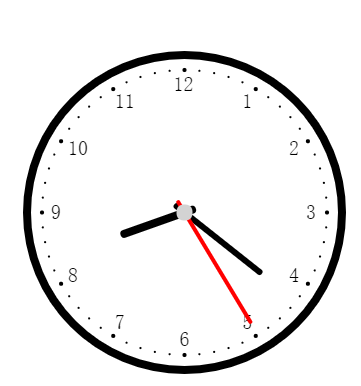
最后出来是这个样子(比较遗憾的是小程序好像不支持设置canvas的文字样式):
以上就是如何在微信小程序上用canvas画时钟的全部内容了,大家都学会了吗?
End